

✓✓✓Stuffs you'll need??👉
A PC
USB Cord
Manually install Mediatek VCOM drivers on the PC
The phone you wish to flash the files to
Scatter file + files to be flashed (You can download the stock rom or firmware for your phone )
*Download a recent version of SP Flash Tool
Ok✓
How to use SP Flash Tool
Follow the steps below to learn how to flash stock rom using Smart Phone Flash Tool (SP Flash Tool]
✍️
1. Remove the battery from the phone and slot it back in without booting the phone (If the battery is inbuilt then simply make sure its off)
2. Launch SP Flash Tool as Administrator
3. Click on Scatter-loading by the right

4. In the window that pops up, select the scatter file for your phone model then click Open (scatter file is a text file with the word "scatter" in its name )

5. A list with ticked boxes should appear in SP flash tool (preloader, boot, recovery etc)
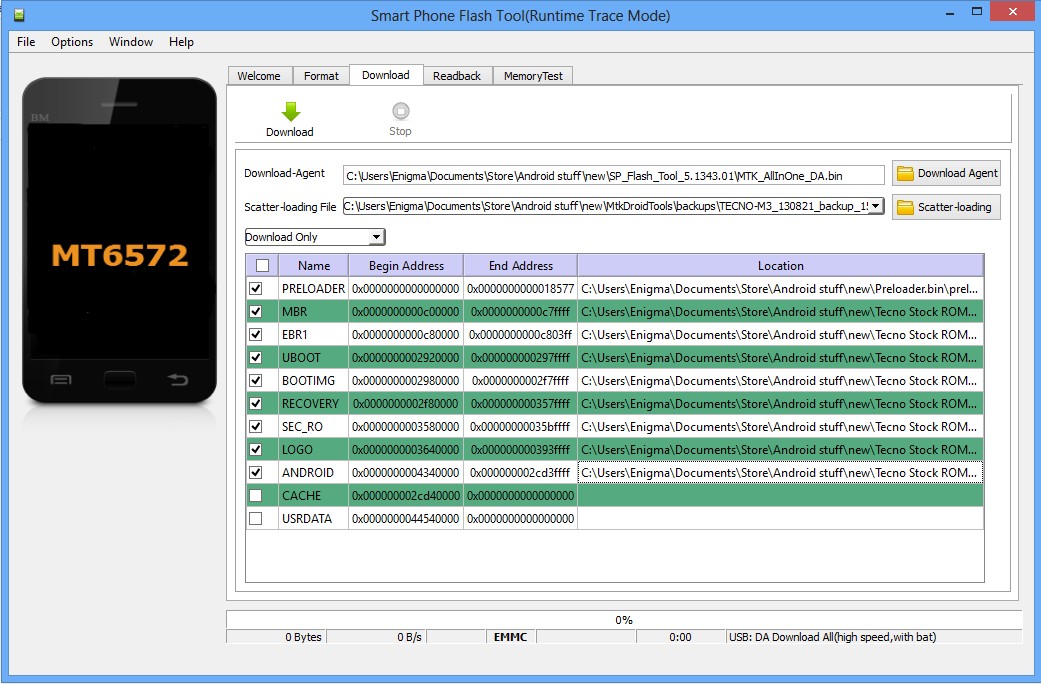
6. This particular step is ONLY for when you wish to format the phone. Skip this step if you don't wish to format or you're not 100% sure abt FORMAT
Warning! Do Not format unless you have the stock ROM for your exact phone model.
* Click Format at the top
* After clicking Format, a dialogue box will pop up, ensure that 'Auto Format Flash' and 'Format whole flash without Bootloader' are selected
* Click OK, STOP should now be red or green in color
* Connect the switched off phone (with battery inside) to the PC via USB cord
* A progress bar should load till you get a 'Success' message (green circle with OK)
* Disconnect the phone from PC
________________)
7. Untick the box in front of any item you do not wish to flash
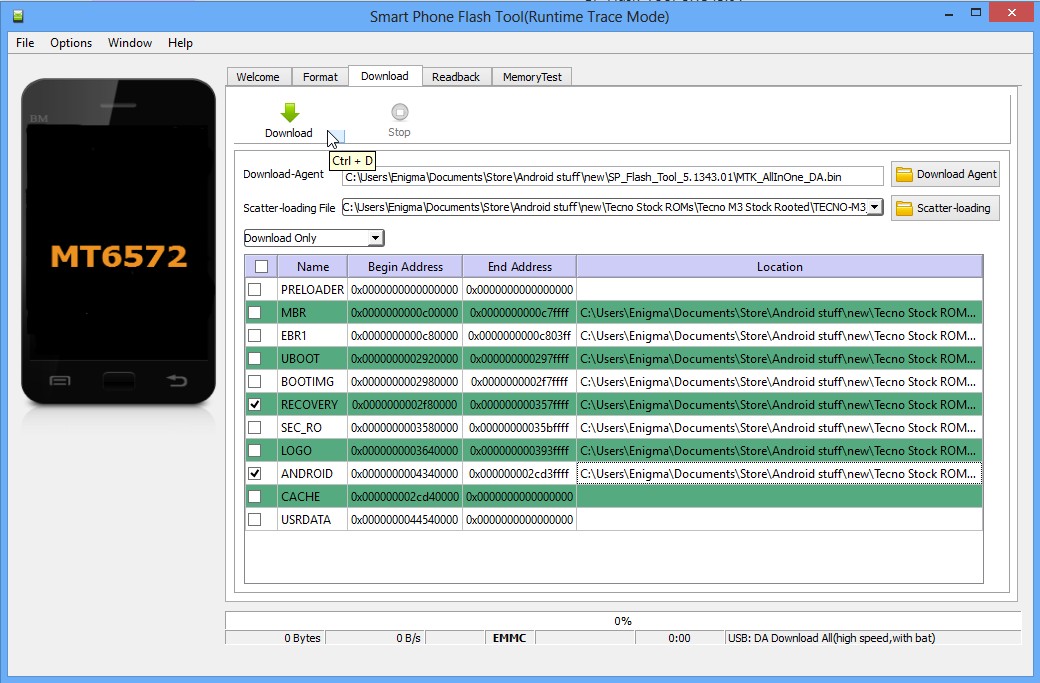
8. To manually load an item that doesn't automatically get ticked after loading the scatter file, tick the box in front of that item then double-click its Location and select the corresponding file in the window that pops up
9. Once the file(s) you wish to flash is (are) ticked, click Download (with an arrow above it)
10. STOP will now be CLICKABLE while other options should be Un-CLICKABLE
11. Connect the switched off phone (with battery inside) to the PC via USB cord without holding any button(if need be,Tap the power or volume key to make The flashtool detect it quickly
12. A Loading bar should start running below the screen

13. Wait till you get a Success message (green circle with OK), do not interrupt before then
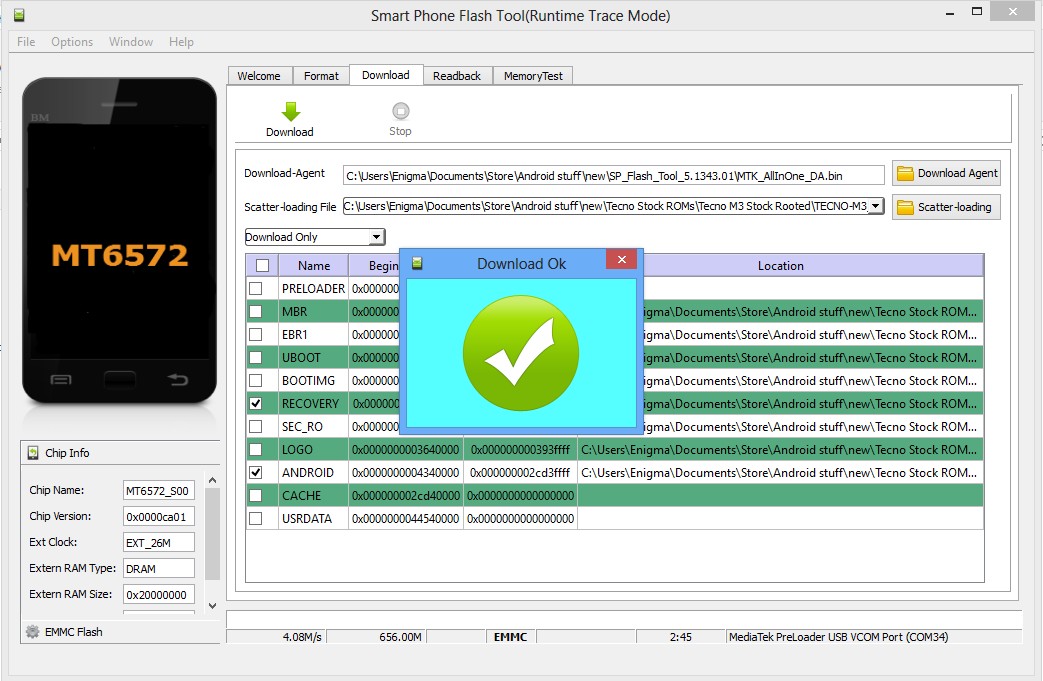
14. Disconnect the phone, remove the battery for for few seconds (if removable), slot it back in then power up the phone

No comments:
Post a Comment